
After you request
Track your request and your quote
See where each request stands, read the formal quote, accept or decline it.
- 1
Open My Account
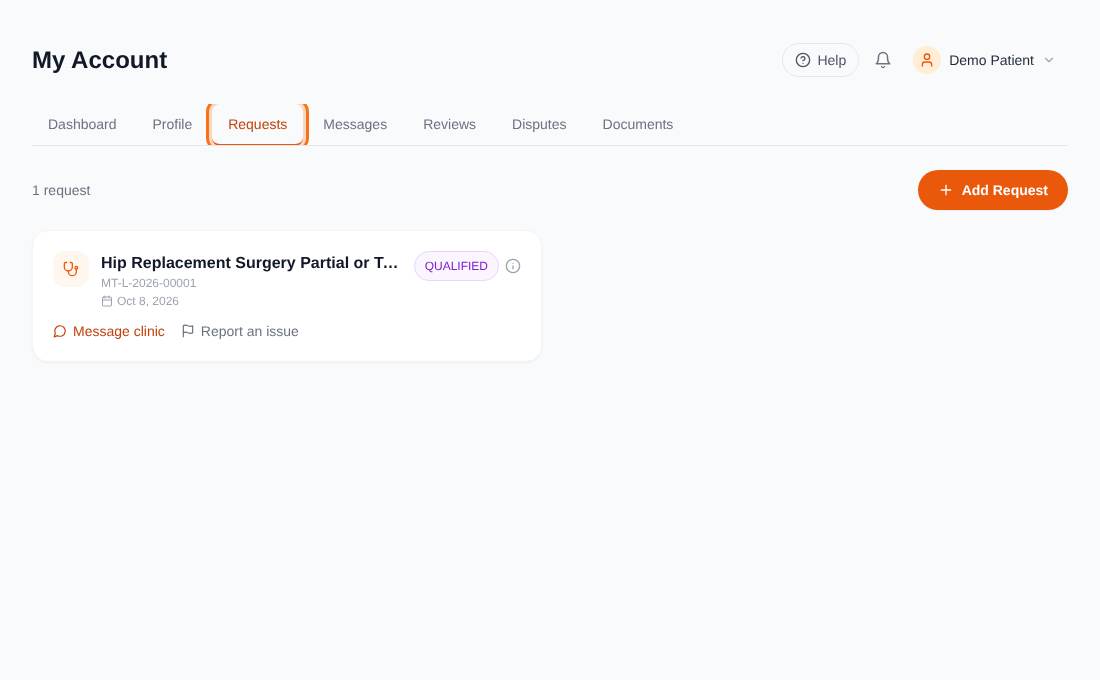
When you are signed in, choose Account from the menu next to your name at the top right, then open the Requests tab. The tabs along the top are Dashboard, Profile, Requests, Messages, Reviews, Disputes and Documents.
Patient sign-in is controlled by Medik Tour. If you do not see a sign-in link, it is not open yet and our care team will keep in touch by email and phone.
- 2
Read the status
Each request card shows the treatment, the request ID, the date and a status:
- Pending: sent, waiting for the clinic.
- Contacted: you started the chat with the clinic.
- Qualified: the clinic accepted your request and will prepare a quote.
- Quotation: a formal quote is ready for you.
- Approved: you accepted the quote.
- Declined: you declined the quote.
- Arrived: you have arrived at the clinic.
- Discharged: your treatment is complete.
- Closed: you ended the conversation.
- 3
View and answer the quote
When a quote arrives, press View Quote. It shows the procedure, treatment plan, price, payment terms, validity date and what the price includes. Press Accept or Reject.
Accepting shows your interest; it does not commit you to treatment. If the clinic edits the quote, it comes back to you to answer again.
- 4
Message the clinic or report a problem
Use Message clinic on a request to open the chat, or Report an issue to raise a dispute with our team.